
Your Gathid representative will organize for an Upload Portal account to be created for you, please ask them if you've not received advice already!
What is the Gathid Upload Portal?
The Gathid Upload portal is a gateway solution that provides the ability to securely transfer files between a customers environment and their Gathid "Google Cloud Bucket". While many system data extracts are able to be received by Gathid via API connectors, some applications may require a manual csv file to be pushed to their Gathid Cloud. The Gathid upload portal is a helpful mechanism to incorporate extracted data quickly to Gathid and is only required for clients that require the ability to share files manually.
User Accounts within the portal require a Username, Password and Multifactor authentication (via their authenticator app of choice). Service Accounts have 'write only' access by default. These accounts are not credentialled to 'see' or 'access' any files stored in the bucket. User accounts can also be set up with minimal access upon request.
In future versions of Gathid, Administrators will have the option to upload files directly from the Gathid user interface, mitigating the need to obtain and manage separate upload portal account credentials.
How to sign up for a Gathid Upload Portal Account
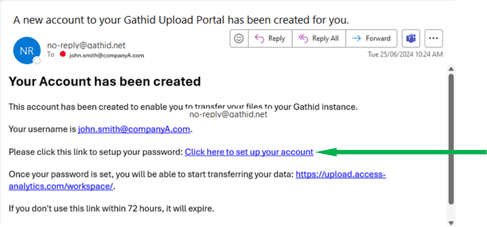
- You will receive an automated email from no-reply@gathid.net that your Gathid representative will release to you.
- If you can't see it be sure to check your Spam or Junk folders before advising your Gathid representative you've not yet received it.
- To start setting up your account, in the email click on the hyperlink Click here to set up your account
- A browser window will appear to the Login screen of the Gathid upload portal as displayed below
- In the username field, enter the username provided to you within the email
- In the password field, enter a new password you will use for future logins to the Upload Portal
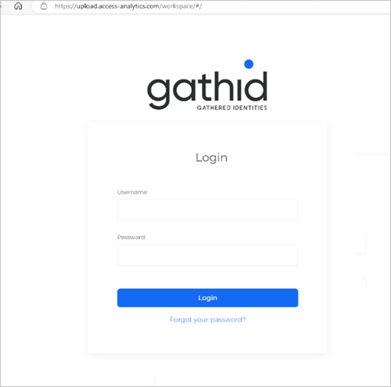
- Click Login
-
The Authentication Verification screen will appear so that you can setup Multifactor Authentication (MFA) on your account. This is mandatory.
-
On your mobile device (applies to steps 8-15), open the Authenticator application on
- i.e. Google Authenticator or Microsoft Authenticator
-
Click the + sign
-
Select Work or school account
-
Select Scan QR Code in the popup Add work or school account.
- The Authenticator application will enable the camera on your mobile device.
- Point your mobile device at the screen ensuring the QR Code displayed is within the frame on your mobile device screen.
- The Authenticator application should display your accounts list, now with the new account added
Name: Gathid Software - Gathid - The number displayed will refresh every 30 seconds (refresh interval may differ depending on your chose Authenticator application on your mobile device.)
- Enter the 6-digit number from your Authenticator app onto the Authentication Verification screen for the Gathid upload portal.
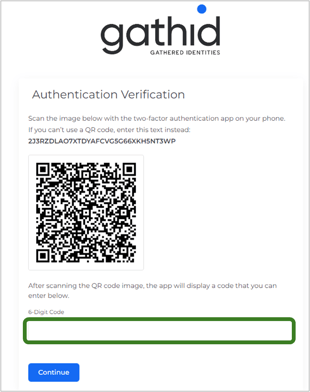
- Click Continue
- Save Your Recovery Codes per the onscreen advice
- One last time, you will be prompted to add in the username and password created in the initial login screen. Enter username and password.
- The Two-factor Authentication screen then displays. In the 6-Digit Code field, enter the one-time password code shown in the Authenticator app on your mobile device for this new account.
- You will then be able to see your organizations' Gathid Upload Portal.
If you require assistance, contact ask@gathid.com.
FAQ:
I have replaced my mobile device, how do I get the code for Authenticator renewed?
- Please contact ask@gathid.com to reset your MFA for your Authenticator app. A new welcome email will need to be sent to you. Once you receive the email, follow the prompts detailed in it.
📄PDF - Gathid - Access the Upload Portal