
The AWS Identity Center Data Connector is not enabled by default on your Gathid instance.
Contact your Gathid representative to enable the AWS Identity Center Data Connector on your instance.
Summary
-
Validate that the new AWS Identity Center API connector is available on your Gathid instance
- Create an IAM user and assign permissions
- Obtain an Access Key and Secret Key for the Gathid connector
- Obtain region and Identity Center Store ID
- Configure the Prep Script tab in the AWS Identity Center Loader
- Connect external relationships for AWS Identity Center to your other source systems
Steps to configure the AWS Identity Center data connector in Gathid
1. Validate that the new AWS Identity Center API connector is available on your Gathid instance
-
As an Administrator, log into Gathid and navigate to Administration → Loaders.
-
You should see new AWS Identity Center loader in the list, in a Disabled state.
REMINDER: To be able to see Administration menu option you need to be in ADMINISTRATOR role.
2. Create an IAM user and assign permissions
If you already have a User available for Gathid access in your Management Account, ensure that you have the correct Access Policy (see step 2.7 below) assigned to this User. Then continue on to Obtain an Access Key and Secret Key for the Gathid connector.
- Navigate to the AWS Management Console and log in to your Management Account with a user that has administrative privileges.
- Navigate to the IAM (Identity and Access Management) service by searching for IAM in the search bar.
-
From the left side bar, under Dashboard, Access Management, select IAM Users.
Then select Create user. - For Step 1: Specify user details, provide a User name (e.g. "gathid-idc-access") and click Next.
- For Step 2: Set permissions, select "Attach policies directly" and then click "Create policy". This will open a new tab in your browser allowing you to create a new Policy.
- In the new tab, for Step 1: Specify permissions, on the right-hand side of Policy editor, select the JSON tab. Delete the existing JSON and paste the following:
{
    "Version": "2012-10-17",
    "Statement": [
        {
            "Effect": "Allow",
            "Action": [
                "sso:ListInstances",
                "sso:ListPermissionSets",
                "sso:ListManagedPoliciesInPermissionSet",
                "sso:ListAccountAssignmentsForPrincipal",
                "sso:DescribePermissionSet",
                "organizations:ListAccounts",
                "organizations:DescribeAccount",
                "sso-directory:SearchUsers",
                "identitystore:ListGroups",
                "identitystore:ListGroupMemberships"
            ],
            "Resource": "*"
        }
    ]
} - Click Next.
-
On the Step 2: Review and create page, under Policy details, provide a Policy name (e.g., "GathidIDCAccessPolicy"). At the bottom of the page click Create policy.
- After the policy has been created, this tab can be closed.
-
Back on the original tab, you should still be on Step 2: Set permissions. Refresh the policies so that the newly created one appears in the list.
Find the new policy by using the search bar. Select it click Next.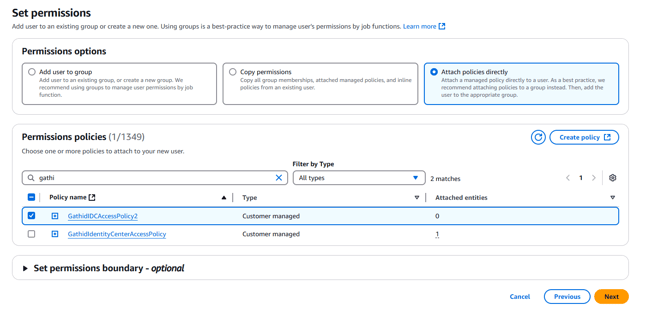
- For Step 3: Review and create, click on Create user. After the user is created, a confirmation message appears at the top of the screen.
3. Obtain an Access Key and Secret Key for the Gathid connector
- After a User has been created and the Access Policy has been assigned to it, return to the IAM Dashboard, under Access Management, select IAM Users from the side bar.
-
Use the search box to find the User that you have set up for Gathid access (e.g. "gathid-idc-access") and click on that User name.
-
On the User details page, in the Summary section on the right-hand-side, click Create access key.
-
For Step 1: Access key best practices & alternatives, select Other and click Next.
- For Step 2: Set description tag - optional, click Create access key.
A confirmation message appears at the top of the screen. Do not leave this screen without downloading the credentials as they cannot be recovered. - Either copy the Access key and the Secret Access key or click Download.csv file.
Keep these credentials as they will be required in the step to configure the Gathid loader. - Click Done.
4. Obtain region and Identity Center Store ID
- While still logged in to the AWS Management console, navigate to the IAM Identity Center service by searching for IAM Identity Center in the search bar.
- Click on Settings from the left-hand-side menu.
- On the Settings page, in the Details section, can locate the Primary Region, (e.g., ‘us-east-1’).
Save this information as it will be required in the step to configure the Gathid loader. - Below, in the Identity Source section, locate the Identity Store ID.
Save this information as it will be required in the step to configure the Gathid loader.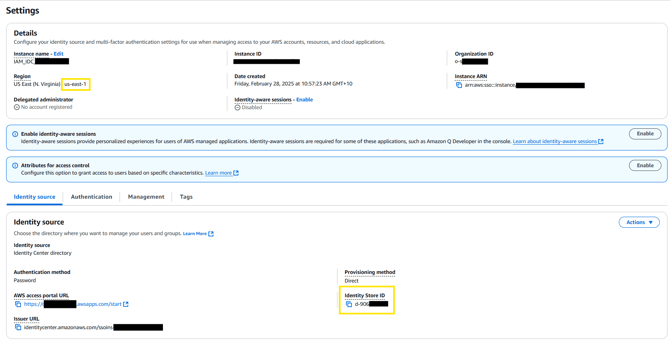
5. Configure the Prep Script tab in the AWS Identity Center Loader
- As an Administrator, log into Gathid and navigate to Administration → Systems.
- Click Add System
- Select on AWS Identity Center loader
- Enter the following configuration details retrieved in the previous steps.
Access Key
Secret Key
Identity Store Id
Region - Click Add System
- Scroll through the auto-configuration.
- Click on Save in the bottom right-hand side of page.
Next Steps: