
Overview
This feature requires a Microsoft App Registration. You can use an existing App Registration that has already been configured for SSO and/or the MS Entra ID system connector.
We recommend creating a dedicated App Registration for email sending. Alternatively, follow step one below to create a new App Registration.
Summary
Steps to configure a Mailbox for Gathid
1. Create a new App Registration in MS Entra ID (if required)
-
Sign in to the Microsoft Azure Portal and navigate to the App Registration service.
-
Create a New registration and enter a name for this application. eg, Gathid Email
-
Click the Register button.
2. Configure API Permissions in the App Registration
- Navigate to the App Registration that has been created for Gathid Email.
- From the left-hand side menu, under Manage, click on API permissions.
- Add a permission and choose Microsoft Graph from the pop-up box.
Select Application permission. -
Search for Mail.Send, select it in the Permissions section.
Click on Add permission.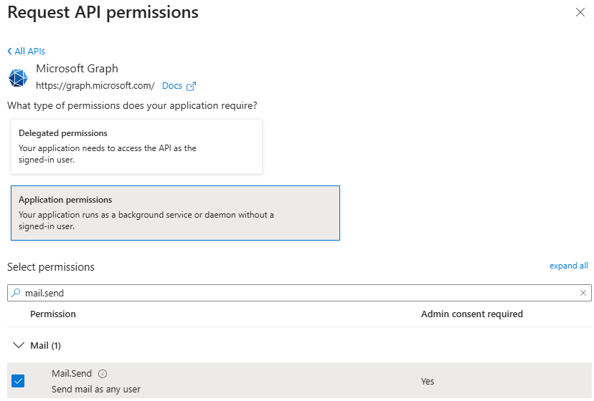
- Note, your organization may require admin consent for this permission.
If so, click on the Grant admin consent for ... option
3. Obtain credentials from the App Registration
- In the Overview section of your App Registration find and note down the IDs for:
Application (client) ID
Directory (tenant) ID
These will need to be provided to your Gathid representative. - Under Manage on the left-hand menu, click on Certificates & secrets.
Ensure you are on the Client secrets tab and create a New client secret. - Enter a Description e.g., Gathid email and select an Expires time period. (We suggest 2 years for easier management.) Click Add.
- Copy and securely store this client secret value as it will not be visible again.
It will need to be provided to your Gathid representative.
4. Set up a sending Email Account
- You will need to have a Microsoft 365 email address (e.g., gathid@yourdomain.com) for the application to send emails. We recommend using a Shared Mailbox so that your in-house administrator can monitor any responses.
5. Provide the credentials to your Gathid representative
- Provide the credentials obtained in step 3 to your Gathid representative.
Note: If required, Gathid can provide a PowerShell script that will obtain this information automatically.- Application (client) ID
- Directory (tenant) ID
- Client Secret Value