
This guide provides information on connecting a system using Gathid's Generic REST API Data Connector.
Summary
- Overview of Gathid's Generic REST API Connector.
- Request and validate the Generic REST API Connector is on your organizations' Gathid instance.
- Configure the Generic REST API loader.
- Verify connection success following next Gathid refresh (Stack Run).
Overview
Best suited to custom and bespoke systems that follow standard REST API support. See the limitations listed in the next section.
The generic REST API data connector retrieves data from various REST APIs in a specific JSON format.
The connector sends GET requests over HTTPS to port 443. An example of Swagger 2.0 definition of the expected endpoint is given below.
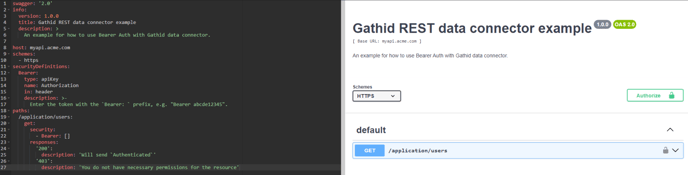
The connector obtains all data available from the target REST API. However, after first run time of this configured loader, specific data fields within the loader configuration can be set to be blocked from being processed into Gathid's data model for all future runs.
Limitations
- Authentication: This connector currently supports only authentication that uses single string i.e. Bearer.
- Pagination: Headers must provide a direct link to the next URL.
Steps to configure the generic REST API Data Connector for a system in Gathid
1. Validate that the new generic REST API connector is available on your Gathid instance
-
-
As an Administrator user, log into Gathid and navigate to Administration → Loaders.
-
You should see new generic REST API connector loader in the list, including the system name your Gathid representative advised of, in a Disabled state.
-
REMINDER: To be able to see Administration menu option you need to be in ADMINISTRATOR role.
2. Obtain an API URL and API Key from your source system instance
These values are required in order to configure the PREP SCRIPTS tab in the next section.
3. Configure the PREP SCRIPTS tab in your Generic REST API system Loader.
- As an Administrator user, log into Gathid and navigate to Administration → Loaders.
-
Select System Generic REST API loader name → PREP SCRIPTS tab.
-
Populate values for the properties listed per the table below as obtained from the source system in the step above.
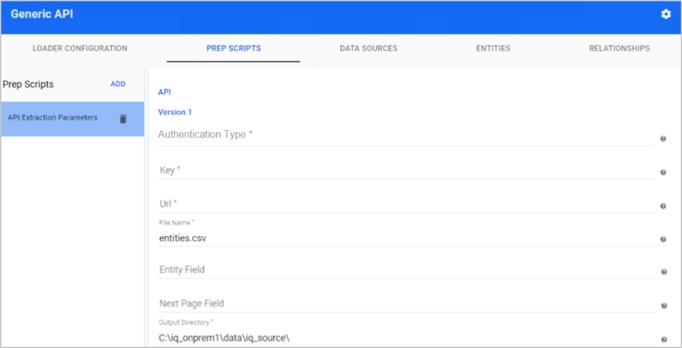
Authentication Type Such as: Bearer / SSWS / x-api-key Key API key for authentication. The Key will be sent as a 'Bearer' token in the header. i.e. String only.
URL URL of the GET endpoint for data retrieval. File Name Set to entities.csv. Do not modify.
Entity Field See Response format type below to determine required option.
If Array of JSON object per option 1: Leave empty.
If JSON object containing an array of objects per option 2: Enter the name of the field that contains the array of entities.
Next Page Field See Response format type below to determine required option.
If Array of JSON object per option 1: Leave empty.
If JSON object containing an array of objects per option 2: Enter the name of the entity containing the link to the next page. Leave it empty if not used.
Output Directory Enter the following address:
C:\iq_onprem1\data\iq_source\
Response Format Type
The source system will return different types of data and in a specific format. To accommodate this, the generic REST API data connector supports two types of response formats.
Depending on the source system that is being configured, determine the response structure that it sends and follow the steps to configure the Entity field and Next Page field based on one of the options:
- Option 1. Array of JSON object: Use this when the source system returns an array of entities. Example:
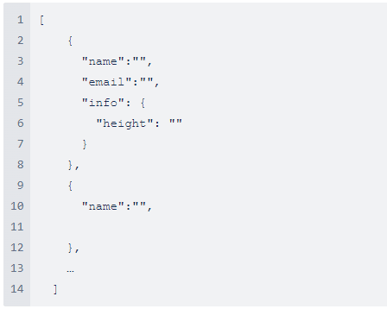
Example: Array of JSON object
- Option 2. JSON object containing an array of objects: Use this when the source system returns metadata along with an array of entities. Example:
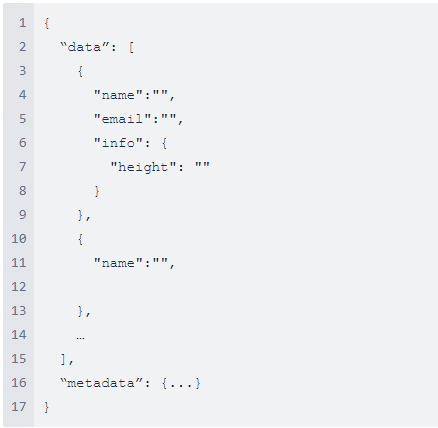
Example: Array of JSON object
- Click SAVE
4. Configure the DATA SOURCES tab in your Generic REST API system Loader
- Navigate to DATA SOURCES tab.
- Select ADD and configure the following properties:
- Name: Enter a name for this data source i.e. Accounts
- Template: Select the file type of the data source target file i.e. CSV File
- Directory: C:\iq_onprem1\data\iq_source\
- File Name: Enter the name filename.
- Select Import Sample CSV
- Select the file that configured for this connection.
- The Fields will be listed on the right side of the screen
- Review the data model properties list ensuring the format is as desired. See knowledge base article for more information on configuring Data Sources Configuring the Loader: Data Sources.
- Click SAVE to save the Data Source configuration.
- Repeat steps 1-5 for each data source file that must be connected.
5. Create Entities
- In the loader, select → ENTITIES tab.
- See knowledge base article for more information- Configuring the Loader: Entities.
- Click SAVE once one or more entities have been added.
6. Enable the Loader
-
Navigate to LOADER CONFIGURATION tab, and toggle the Loader is Disabled to ON. This will enable the loader:
- Click SAVE

- Notify your Gathid representative or via ask@gathid.com that you have configured and enabled your {system name} generic REST API loader.
The support team will validate connectivity after the next system stack run.
7. Validate that Generic REST API system data has uploaded correctly
After the daily stack upload (overnight), Generic REST API system data will be visible on the Search screen. If that is not the case, contact the Gathid team via support@gathid.com.
8. Create Relationships
- In the loader, select → RELATIONSHIPS tab.
- See knowledge base article for more information- Configuring the Loader: Relationships.
- Click SAVE if any relationships are added.
Note that the new relationships or modifications to existing ones will be processed by the system in the once-daily stack run.
4. Validate that Generic REST API system data has uploaded correctly
After the daily stack upload (overnight) since adding relationship configuration, Generic REST API system data will be visible on the Gathid Identity Graph via the Search screen. If that is not the case, contact the Gathid team via ask@gathid.com.
📜Link to PDF of this article: Generic REST API Data Connector Guide
Next:
1. More on Configuring the Loader: Entities
2. More on Configuring the Loader: Relationships
End of knowledgebase article.