
You must have already setup your account to your organizations Gathid Upload Portal in order to manage files. Contact your Gathid representative at ask@gathid.com if you need assistance.
Previous article: How to Access the Upload Portal
Steps to upload files to your organizations Gathid Upload Portal
- Select the blue Upload button in the top left corner.
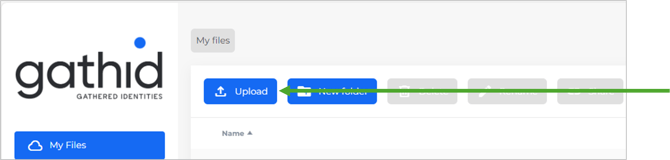
- Drag to drop your file into the Upload Files modal.
- Select the blue Upload button in the bottom left of the modal.
- Your file is now uploaded.
! Remember to ensure you have saved your files ‘as’ CSV to ensure the file contents is converted correctly. Follow these steps to ensure this:
➡️ Open your file and select Save As
➡️ Verify that the current File Type is displayed as CSV, if it is not, select the correct CSV file type and continue with Save-As.

FAQ:
I am receiving an upload error when I follow the steps above.
- This can occur when you have had the page open for too long.
- Please close the browser and sign in to the upload portal and retry your upload.
NEXT UP
Continue on the New System Onboarding guides